 Look What I Have
How it works
Four things, and she only ever has to do the second one.
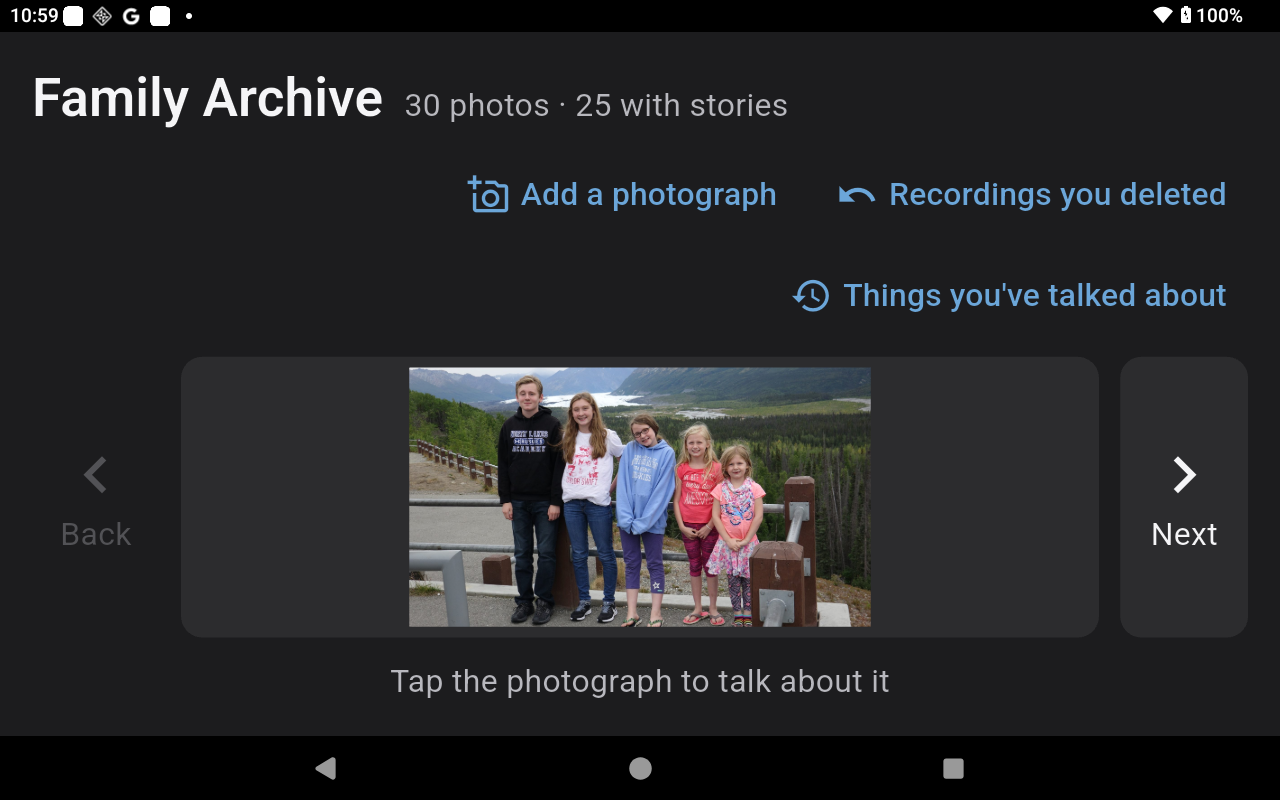
1. Add a photo
Point the tablet at a print and take a photo of it. That is the whole of it — there is nothing to name, file or sort.
Most families do a stack at a time: one person holds and turns the prints, she takes the photos. Photos already on a computer can be brought in by whoever looks after the archive instead.
If the tablet cannot reach the archive at that moment — the wifi is out, someone unplugged something — the photo is kept on the tablet and sent when it can be. It says so, and it says it is safe. Nothing she takes is ever lost because a network was down.
2. Tell the story
She taps the photo and starts talking. She taps again when she has finished. There is no holding a button down, and nothing runs out.
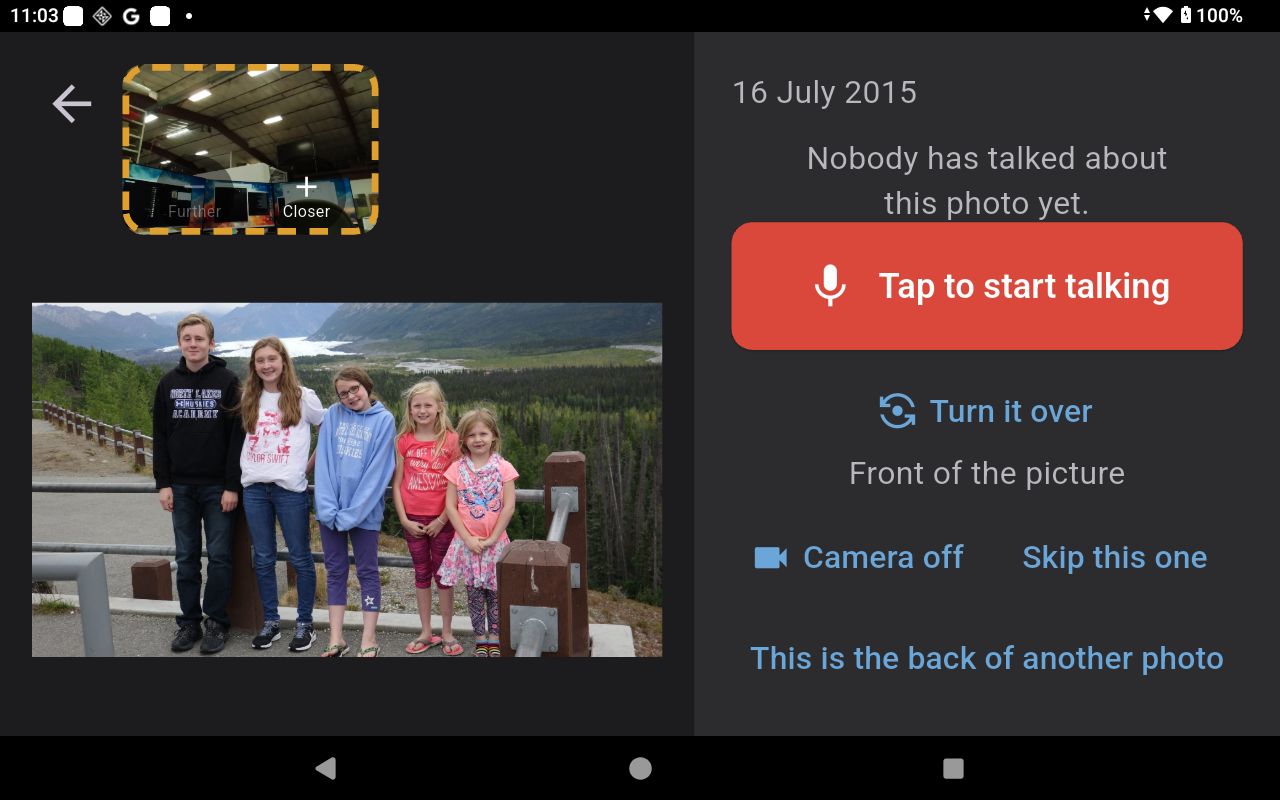
- She can draw on the photo while she talks. Circle a face, say who it is, and the circle appears at that moment for whoever watches it later. There is an Undo the last mark button on screen the whole time.
- The camera is optional. One tap turns it off for that sitting; her voice carries on either way.
- Nothing is timed. A story can be eight seconds or eight minutes.
3. Turn it over
Half the story of an old print is written on the back of it — a date, a place, a name in someone's handwriting. The app treats the back as part of the same photo.
When she adds a photo it asks, in words, whether there is anything written on the back. If there is, she takes a photo of that too.
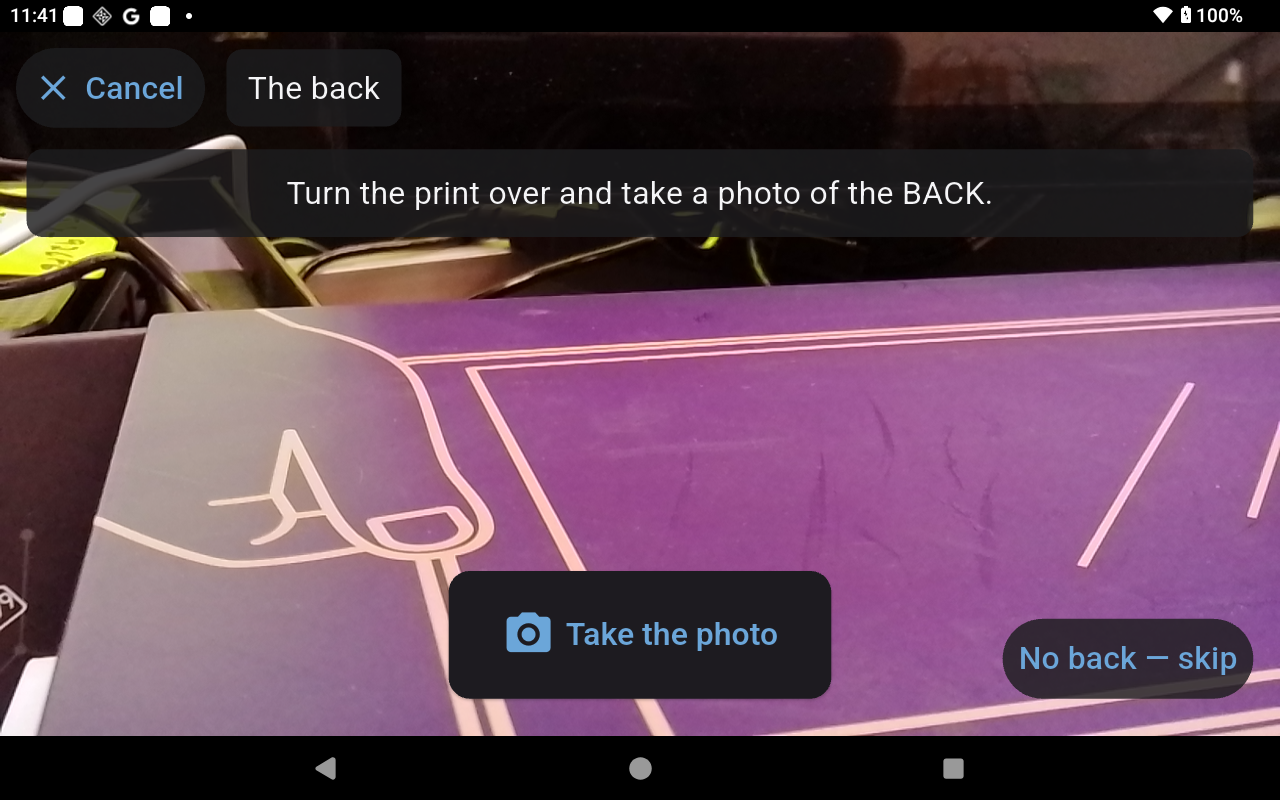
Afterwards, Turn it over shows the back. If she turns it over in the middle of a story, it turns over at that same moment when the story is played back, so the writing is on screen exactly when she is reading it out.
4. Share it
An hour after a story is made it is shared with the family, unless she has said to keep that one to herself. Nobody has to press anything.
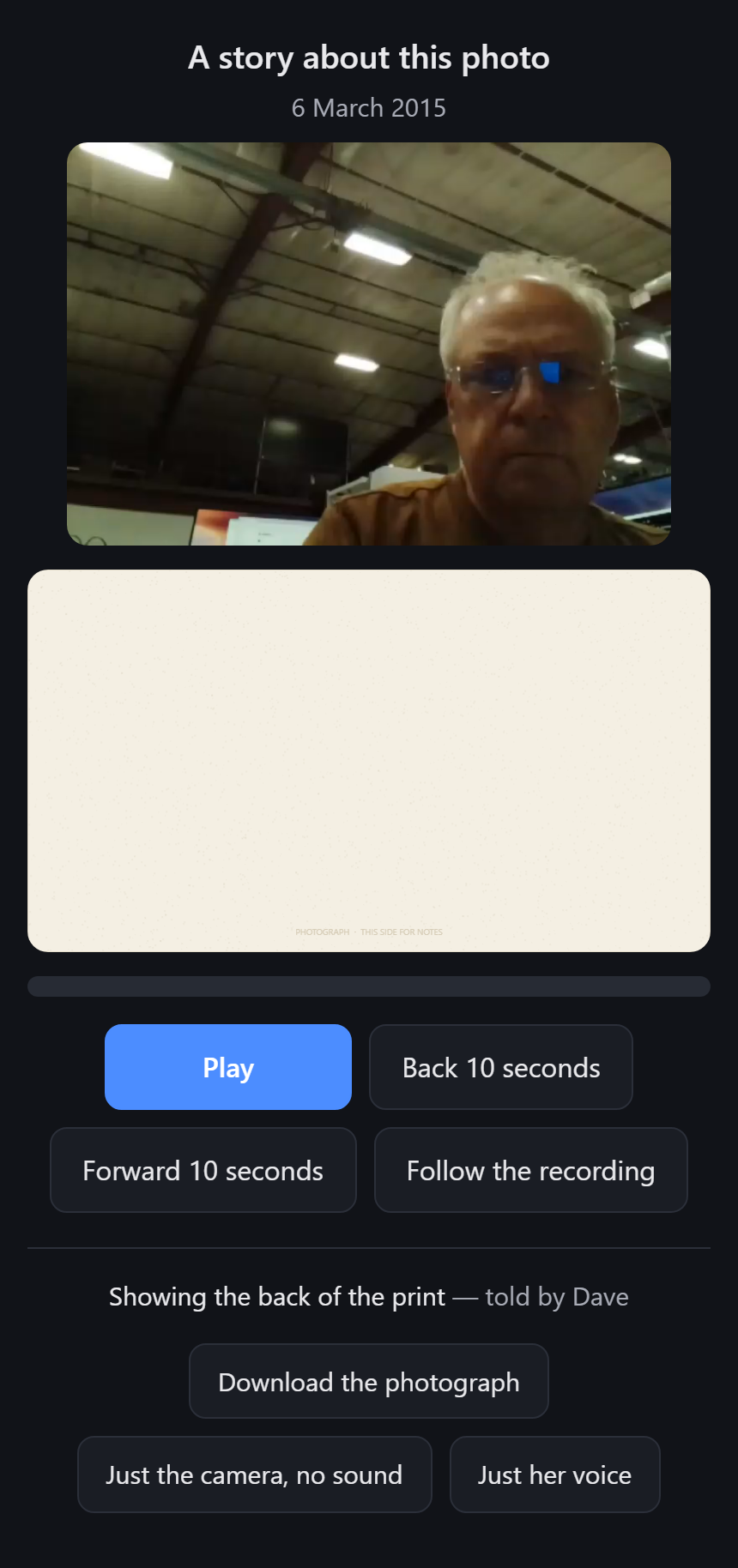
A link can be turned off again at any time, and the moment it is, it stops working for everyone who has it.
What the family sees
Family members watch stories in a browser or on their own tablet. Whoever looks after the archive can see that she recorded four stories yesterday — that is how they know it is working — but cannot listen to one until she has shared it.
Photos are ordinary files in ordinary folders. If every part of this software disappeared tomorrow, the photos and the stories would still be there, openable by anything.